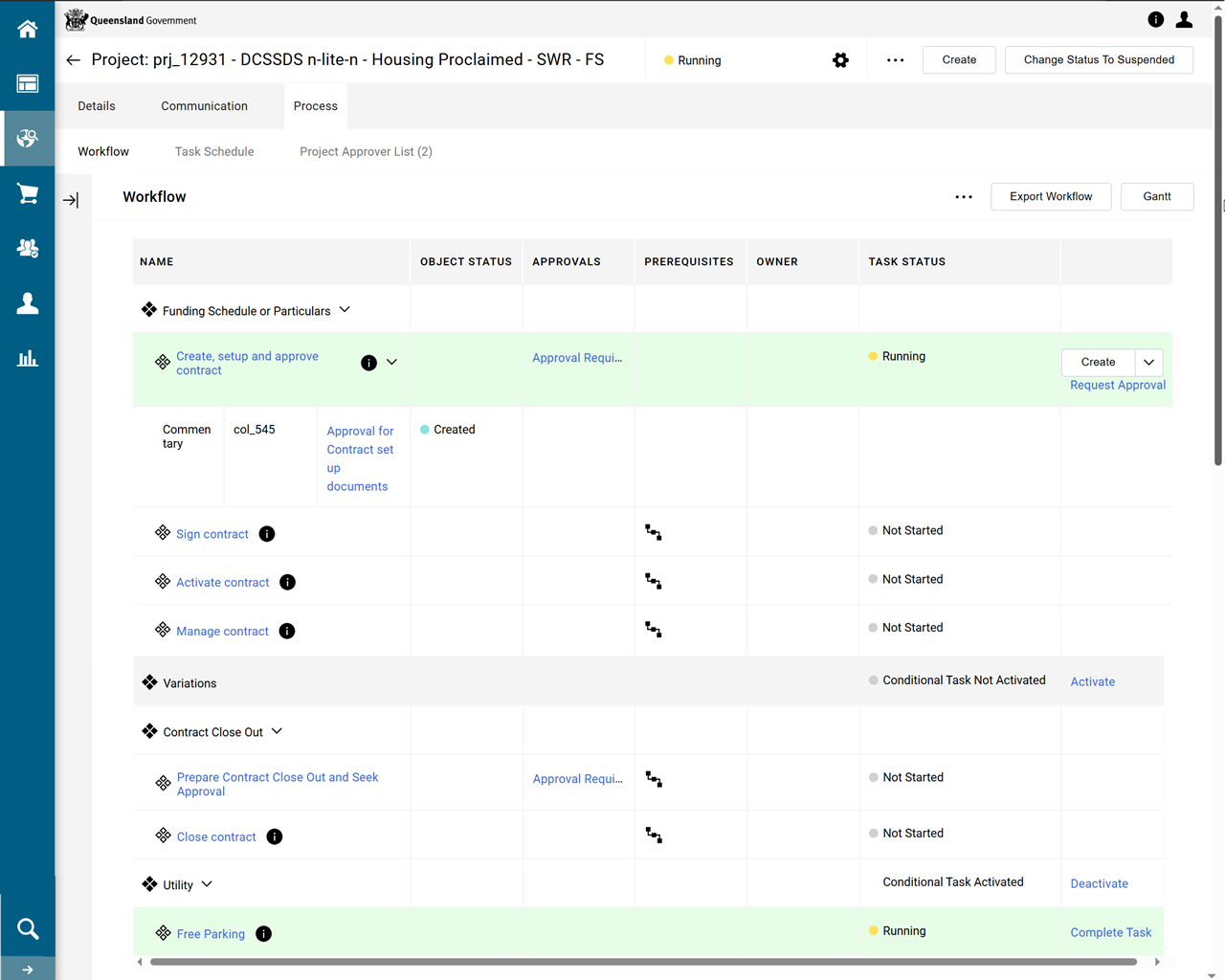
Create an FS or Particulars Project
Warning Do not use the browser's back button or refresh button while using P2i.
In P2i this role is undertaken by a P2i Senior User or a P2i Regional Manager. (Refer to P2i Roles for more information on these roles)
The process for preparing the procurement project is as follows:
-
Create an FS or Particulars Project – The Sourcing Lead creates a new Procurement Project in P2i.
-
Assign project team members – The Sourcing Lead selects and determines the make-up of the project team. At a minimum this should be a P2i Senior Director and the Procurement Authority/Procurement Services. A Procurement Services or Procurement Authority role needs to be added to the project team. Procurement Services roles can view all procurement projects, whereas a Procurement Authority role can only see those procurement projects they’ve been added to.
Watch video - Create a Procurement Project
-
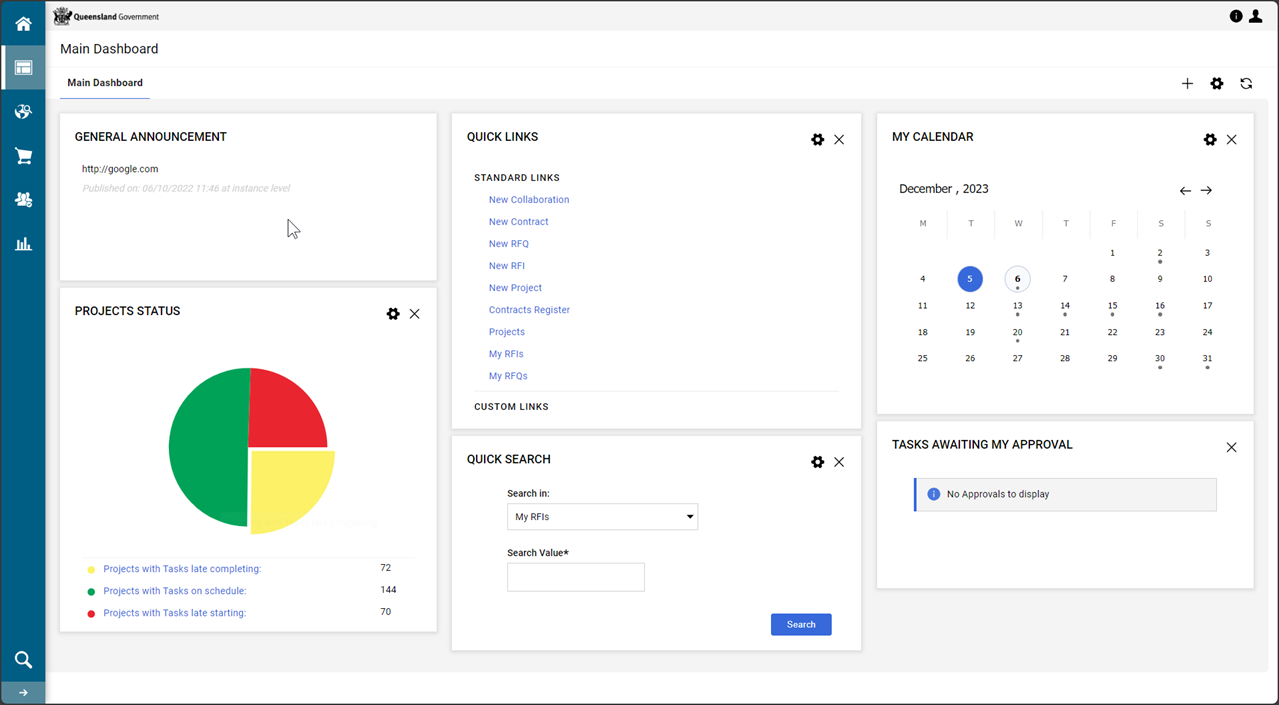
From the Main Dashboard, in the QUICK LINKS portlet, click New Project.
-
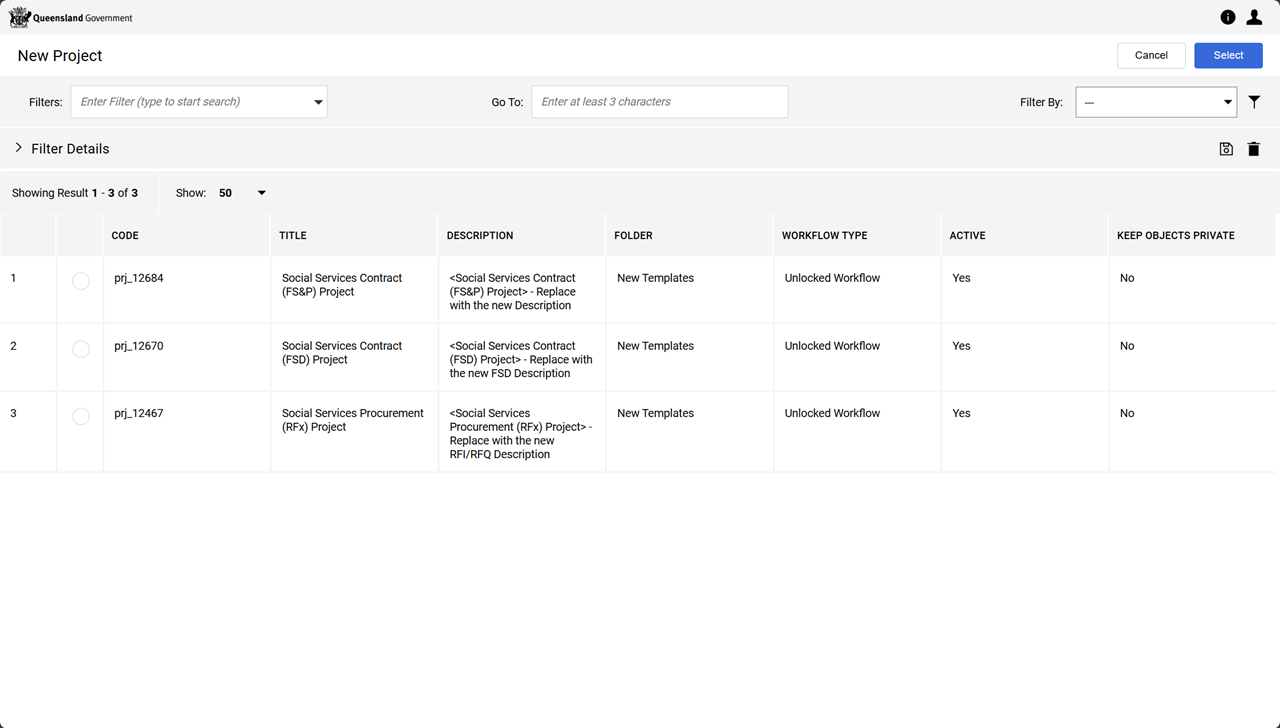
Click Create From Project Template

-
Select the Social Services Contract (FS&P) Project template from the list and click Select.
Note This template provides access to workflows applicable to a FS or Particulars project.
-
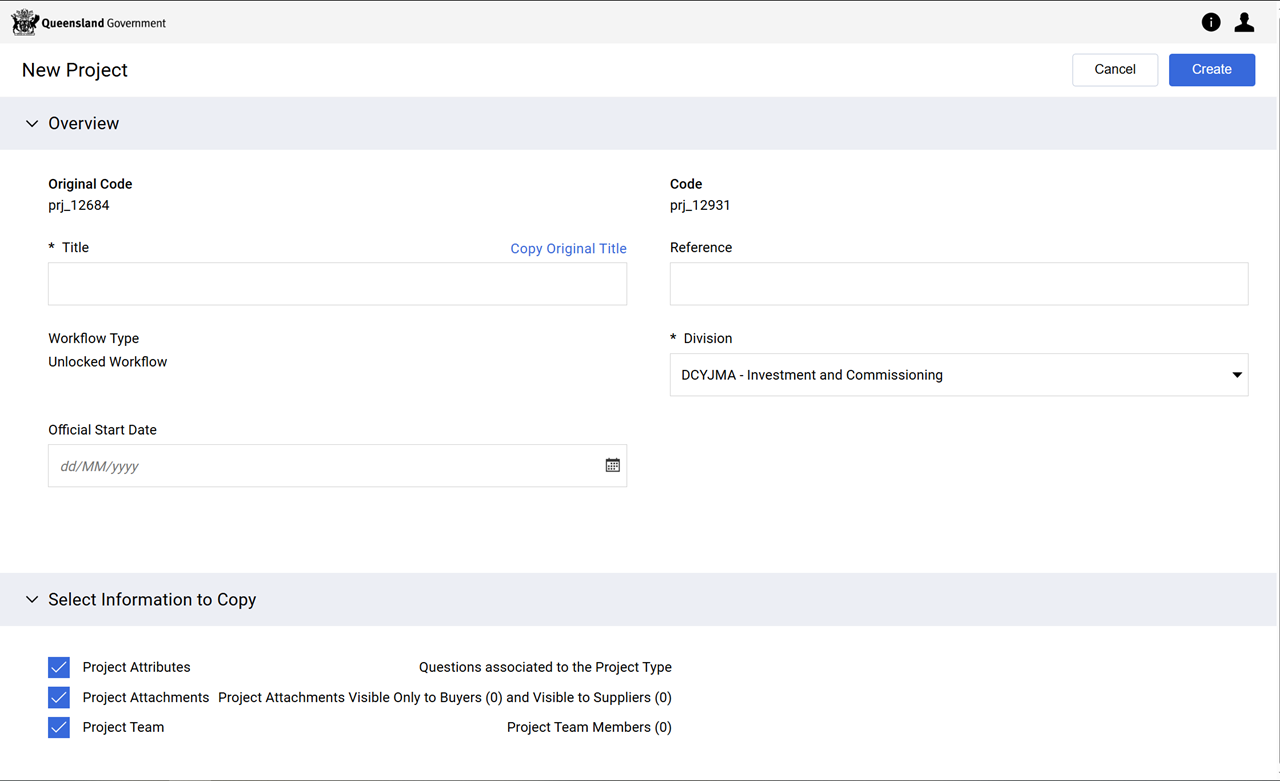
Fill in the fields on this New Project form.
-
Enter a Title.
Note Follow your department's rules for naming your project.
Consistent naming of the Title and Reference fields allows for easier searching later and improves reporting.
Refer to P2i Naming Conventions.
-
Enter a Reference to link it to other procurement projects
-
Leave the Select Information to Copy fields as selected.
-
-
Click Create.
-
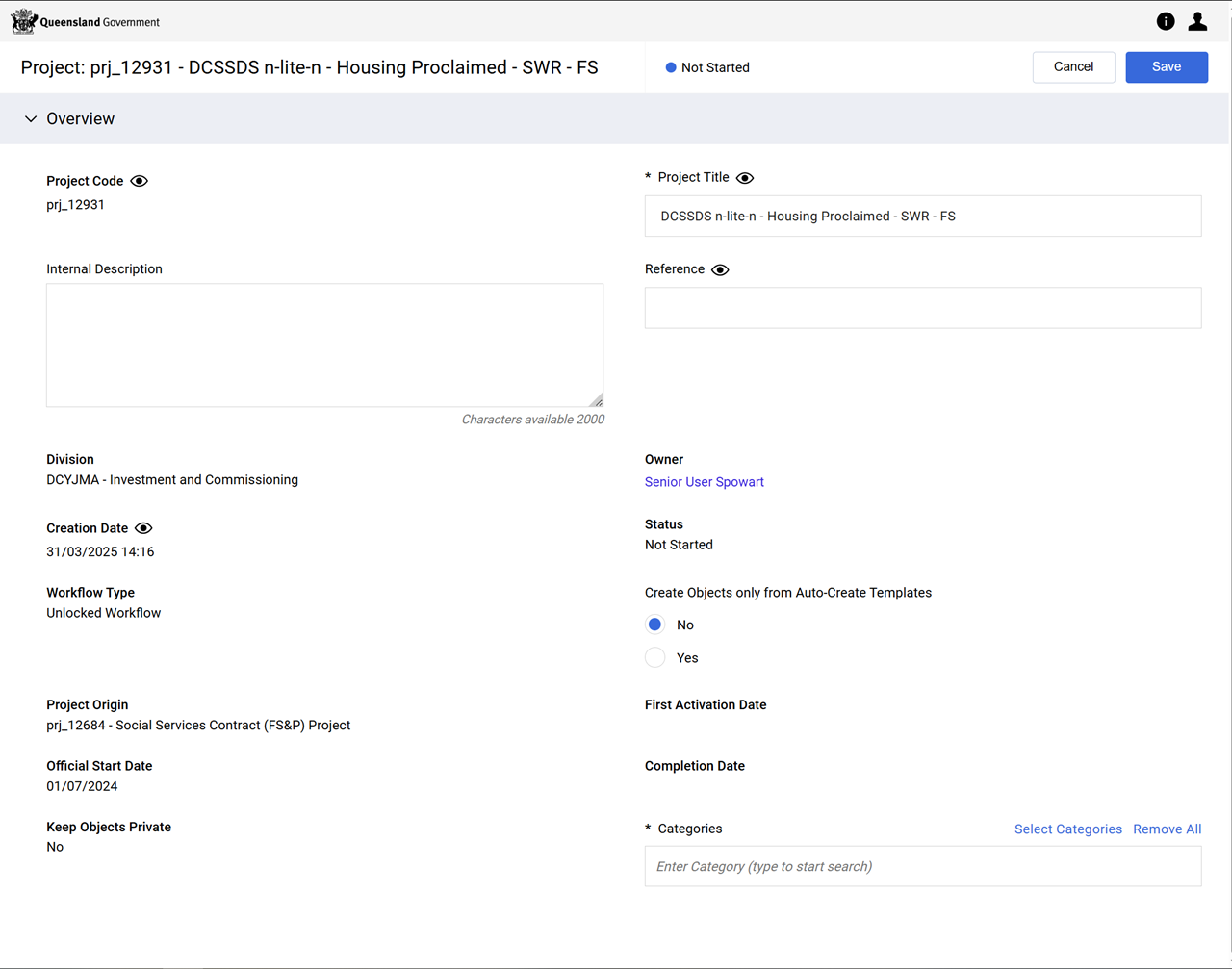
Fill in the fields on the Project: form.
-
Enter an Internal Project Description.
Note Follow your department's rules for populating your project with your internal project description.
-
Leave Create Objects Only from Auto-Create Templates set to No.
-
Enter as many Categories as needed for the contract.
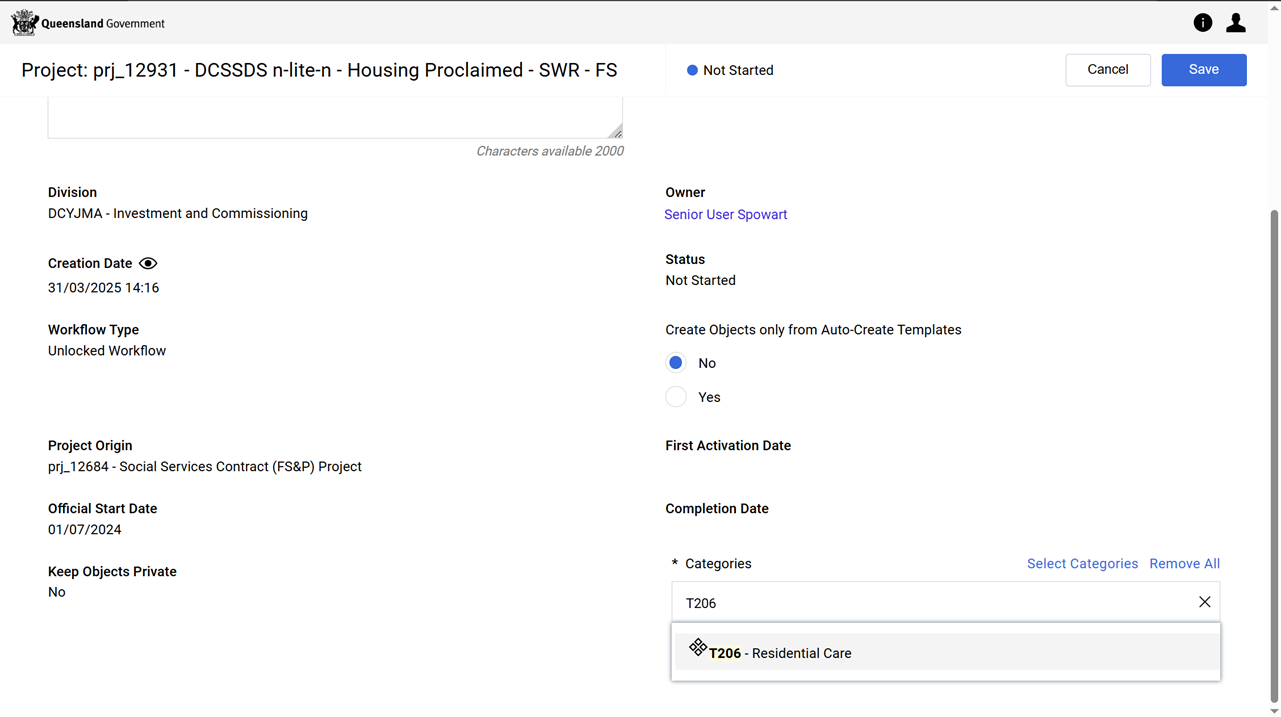
Tip To add categories:
-
Click in Categories.
-
Type the category (e.g. T206).
-
Click the value in the dropdown list.
-
(optional) repeat to add more categories.
-
-
Click Save.
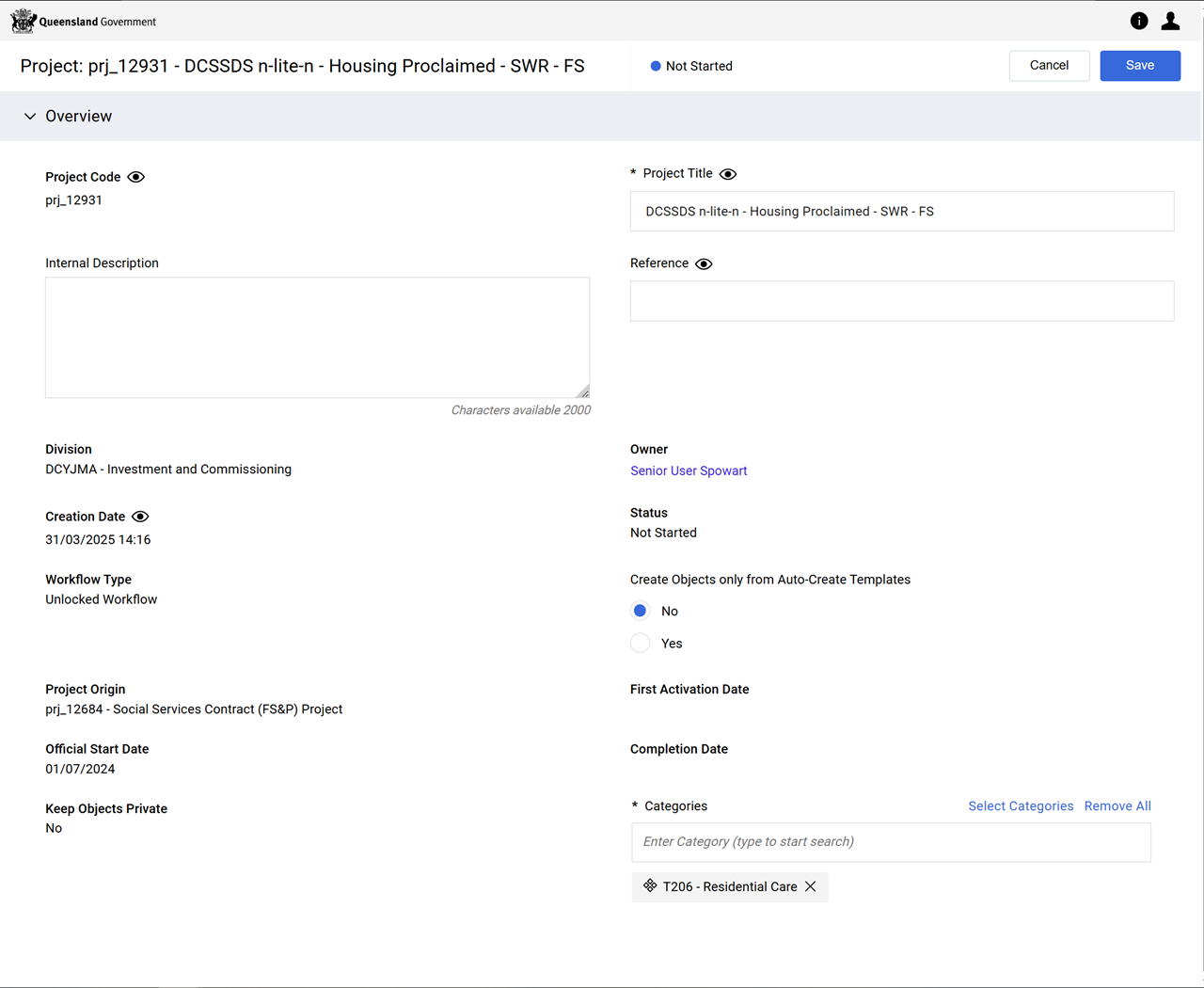
The project is now created.
-
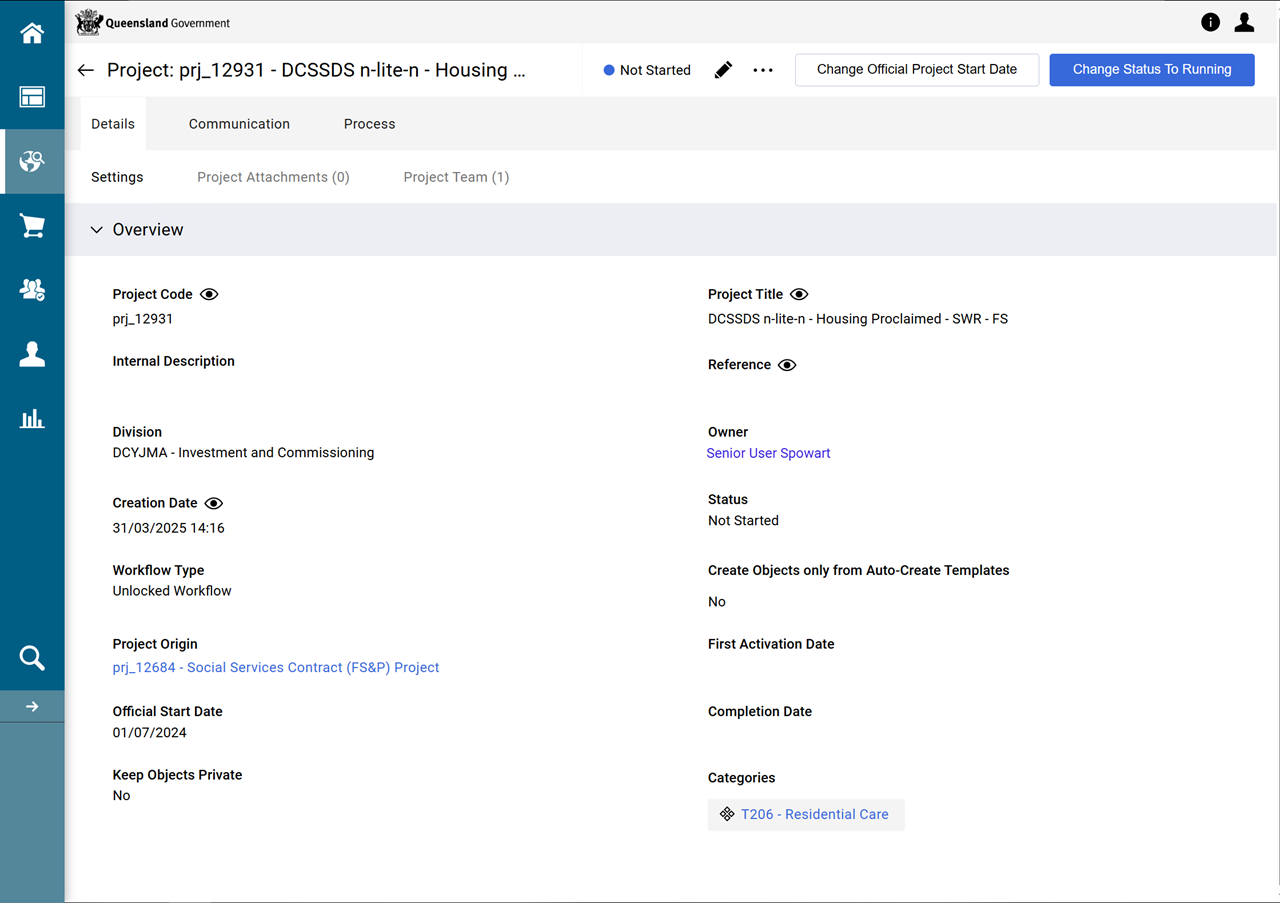
Click Change Status To Running
-
Click Start Project And Tasks
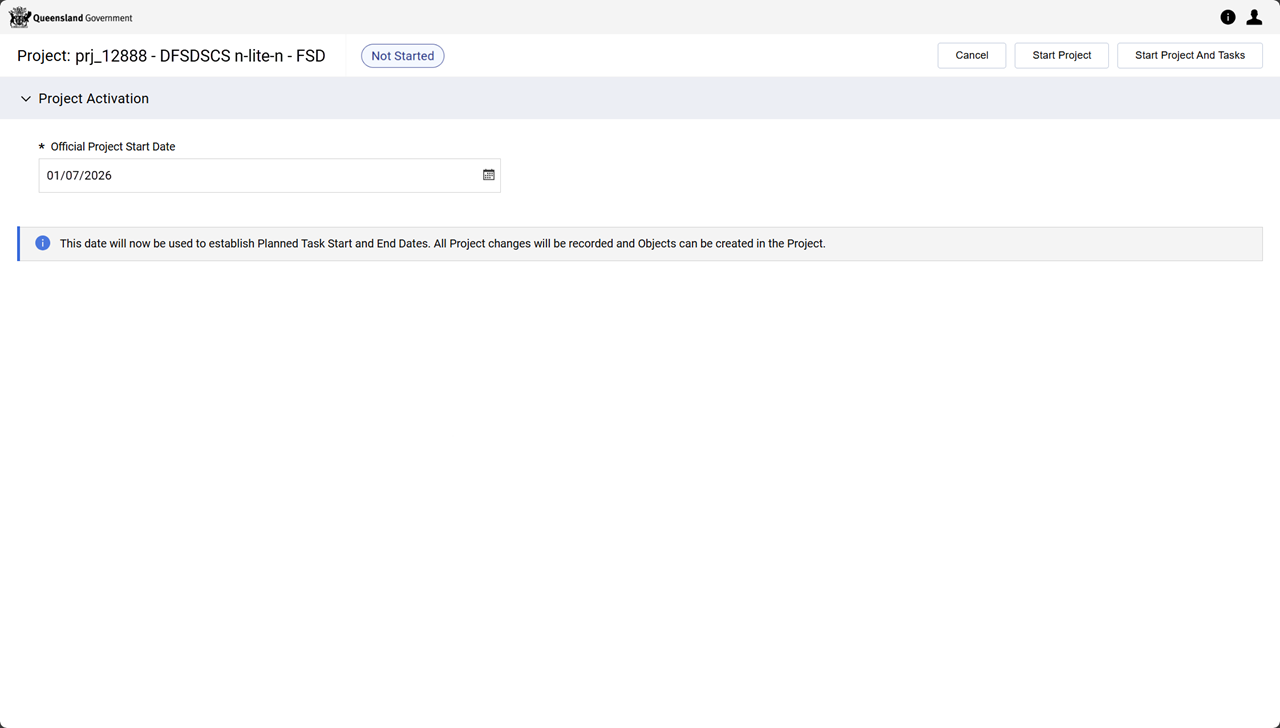
The project's status is Running and the workflow is initialised. The Create, setup and approve FSD workflow task is ready for the creation of the FS or Particulars contract.